Add Tiệm Trà Nhỏ to your Android Home Screen
Open your tea shop from a Home Screen icon with no APK download required.
Updated: 27/09/2026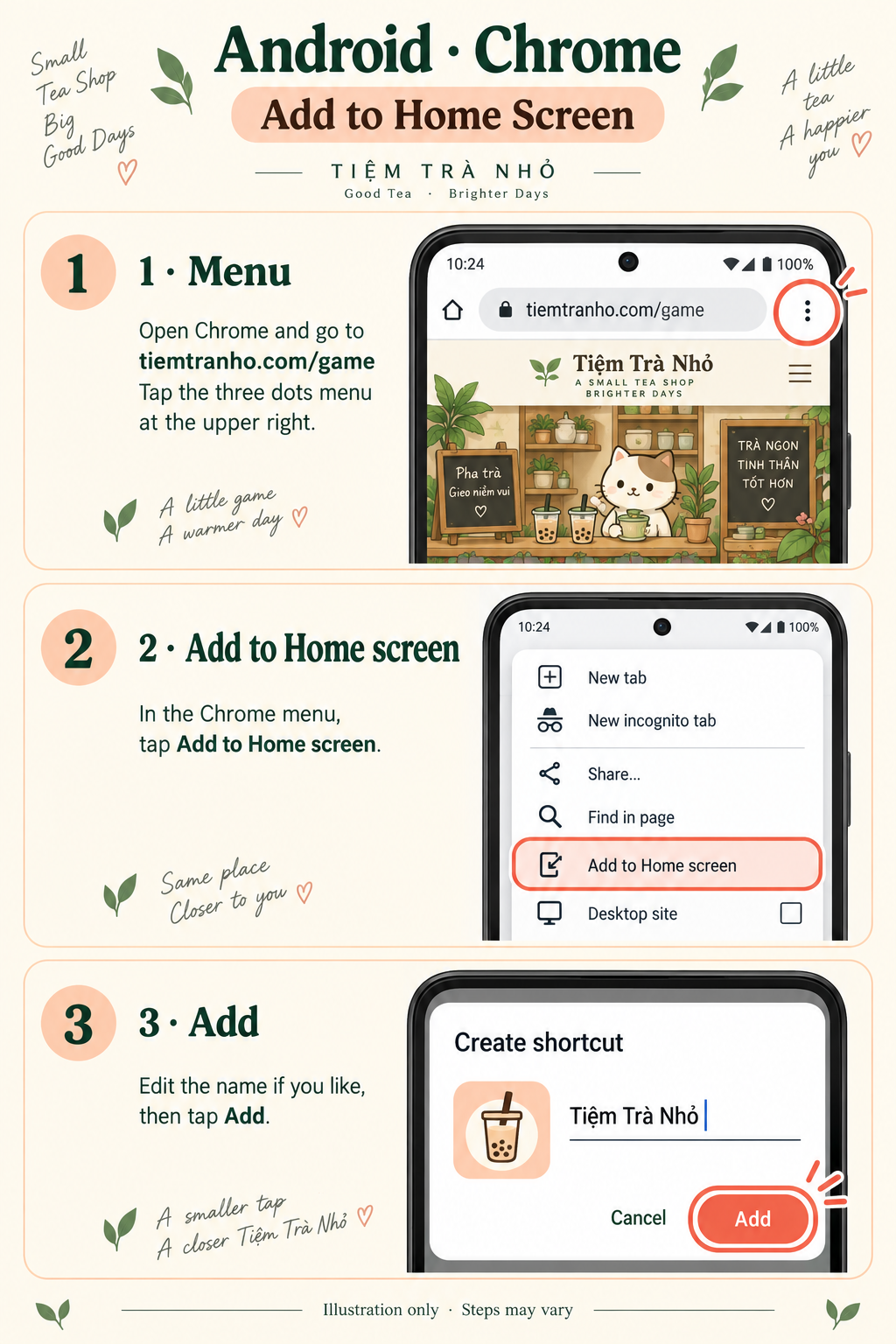
1. Back up before you start
Export your local save as a file or copy its backup code outside the browser. If you use Smooth Play, wait for Backed up. Adding a shortcut does not upload or protect your save. Backup and recovery guide.
2. Open the game in Chrome
Use Chrome to open Tiệm Trà Nhỏ in English. If the game is inside Discord or another app, open the address in Chrome. Prefer the same browser and profile you normally use for your shop. Tap the Add to Home Screen button in the game. If supported, it opens a system install prompt for you to confirm; otherwise it shows the manual steps below.
3. Add the shortcut
Open the three-dot menu → Add to Home screen → Create shortcut, if that choice appears. Check the tea-cup icon and name Little Tea Shop, then tap Add and confirm placement if asked. Some browser versions use different wording or offer Install instead. This website does not require downloading an APK.
4. Check your shop
Tap the icon and confirm the game opens in the expected language and shows your progress. If it opens in another browser or a separate window, your sign-in or local save may differ. Return to the original browser if needed; do not clear data to fix a missing save. For Smooth Play, use the same account and verify the existing backup before playing.
Connection and updates
The icon opens the web game. It does not promise offline access or install a native Android app. Stay connected for loading the game, backups and friend features. Reload to receive website updates; you do not need to clear browser data.
Need help?
Back to download options · iPhone / iPad instructions · Google’s shortcut instructions. Contact [email protected] if the option is unavailable.